DeCube Controls
Click mining, camera rotate, zoom, keyboard shortcuts, and controller glyphs explained.
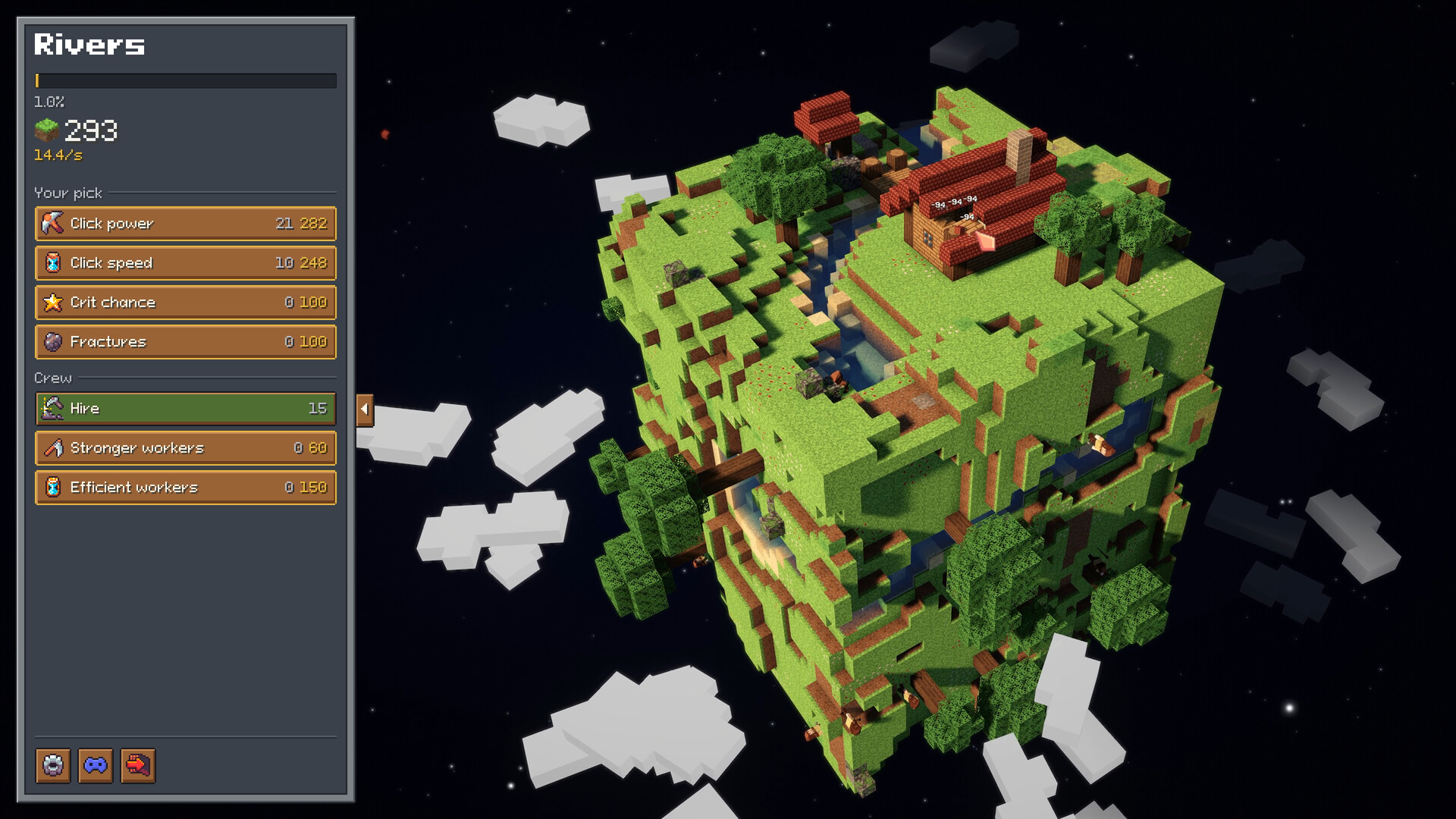
DeCube looks like a simple clicker, but camera control and click modes decide how fast you learn Fracture angles, water pockets, and meteor targets. This controls guide covers mouse mining, right-click and keyboard camera moves, zoom, controller glyphs, Steam Deck notes, and the hold-versus-toggle mining behavior that came out of playtests. Pair it with Getting Started if you have not finished your first planet yet.
Mouse mining basics
Left click is your primary dig. Early builds required you to keep the mouse button held for continuous mining; playtest feedback pushed the studio toward a less exhausting pattern. In current demo builds, you can start mining with a click and let the dig follow until you click again to stop, instead of clamping the button for entire plateaus. That change matters on long sessions and on Deck, where holding a trigger for forty minutes is misery.
Aim matters more once Fracture unlocks. Hover so splash damage hits dense neighbor clusters, not lonely edge cubes. When crits fire, the audio cue should be obvious after early demo sound polish — use that feedback to confirm your cursor is still on a productive face.
Camera rotate and keyboard navigation
You need to spin the planet constantly. Typical desktop flow:
- Right-click drag rotates the view so you can chase unmined faces, caves, and ruins.
- Keyboard navigation (WASD-style planet rotate, added after playtesters asked for mouse-free spinning) lets you keep one hand on upgrades while the other nudges the globe.
- Zoom in for precise water mining or stubborn cloud blocks; zoom out to plan Fracture sweeps across wide surfaces.
- Space / zoom-minus style shortcuts appear in playtest notes as ways to pull the camera back without hunting UI buttons — check the in-game prompt list for your build’s exact binding.
If the camera feels sticky, confirm you are not still in a continuous-mine toggle. Stop mining, then rotate. Mixing both inputs without a clean stop is the most common “controls feel broken” report from new players.
Hold-click behavior notes from playtests
BiteMe Games publicly walked through playtest comments that changed input design:
- Players hated permanent hold-to-mine on long digs; the studio moved toward click-to-start / click-to-stop follow behavior.
- Players wanted keyboard-only planet rotation so they were not glued to right-click drag; WASD-style navigation shipped in response.
- Workers used to need more fiddly placement; later builds reduce drag-heavy assignment so hiring feels closer to a single confirm.
Those changes mean older itch footage can disagree with the Steam demo. Trust the on-screen glyphs in your build, then use this page as a conceptual map.
Controller and glyph support
DeCube advertises full controller support with correct glyphs. On an Xbox-style pad you should see face-button and stick prompts that match Steam Input labels instead of keyboard leftovers. Expect:
- A face button or trigger for primary mine / confirm.
- Stick or d-pad style camera orbit equivalents for rotating the planet.
- Menu navigation that reaches upgrades, workers, and runes without a mouse.
- Pause / map style buttons that do not conflict with continuous mining toggles.
If a prompt still shows a keyboard key on controller, note the screen and send it via Steam Discussions or Discord — Deck tooltip improvements already shipped once in demo hotfixes, which means the studio is actively cleaning glyph paths.
Steam Deck specifics
On Deck, launch the Steam demo (not a leftover itch download) so controller layouts and performance tweaks apply. The developer states the game is fully navigable with controller, uses correct glyphs, and runs in both docked and battery modes. Official Steam Deck Verified may still show as pending because Valve’s badge often waits on wishlist/revenue thresholds (~20k wishlists called out by the studio), even when the game already plays well handheld.
Practical Deck tips:
- Use the toggle-style mine so you are not holding R2 for entire worlds.
- Zoom out more often on the small screen before committing Fracture angles.
- Keep a finger free for camera orbit; do not fight the touchpads if the stick orbit feels good enough.
- Read the dedicated Steam Deck guide for Verified wishlist context and comfort settings.
Accessibility and session comfort
Incremental mining sessions can last longer than you expect. Reduce strain by:
- Preferring toggle mining over hold mining whenever both exist.
- Alternating keyboard rotate with occasional mouse aim for Fracture peaks.
- Lowering UI scale only if glyphs stay readable — Deck tooltip patches exist because small text was a real issue.
- Taking collapse breaks: finishing a world is a natural pause, not a failure.
Controls checklist before you grind
- Confirm left-click dig and stop behavior (toggle vs hold).
- Practice right-click rotate and WASD-style keyboard rotate.
- Zoom in on water; zoom out before big Fracture spends.
- Plug in a controller once and verify glyphs match your device.
- On Deck, finish one short session docked and one on battery to feel thermals and brightness.
Once inputs feel invisible, return to progression: the Demo Guide for worlds 1–2 routing, How to Mine Fast for Fracture and crit economy, and the Guides Hub for the full list. Bad camera habits waste more time than a slightly suboptimal Click Power upgrade — fix controls first.
Frequently Asked Questions
Quick answers to the most common DeCube questions.
Do I have to hold the mouse button to mine in DeCube?
Not necessarily. Playtest-driven builds moved toward click-to-start continuous mining that stops when you click again, so you are not forced to hold through entire planets.
Can I rotate the planet without right-click dragging?
Yes. Keyboard navigation (WASD-style) was added after playtesters asked for mouse-free camera control. Check in-game prompts for the exact keys in your build.
Does DeCube support controllers and Steam Deck?
Yes. The game has full controller support with correct glyphs and developer-claimed Deck optimization for docked and battery play. See the Steam Deck guide for Verified badge context.
Why do older videos show different controls?
Early itch playtests used heavier hold-to-mine and drag patterns. The Steam demo includes QoL overhauls — trust current glyphs over old footage.